
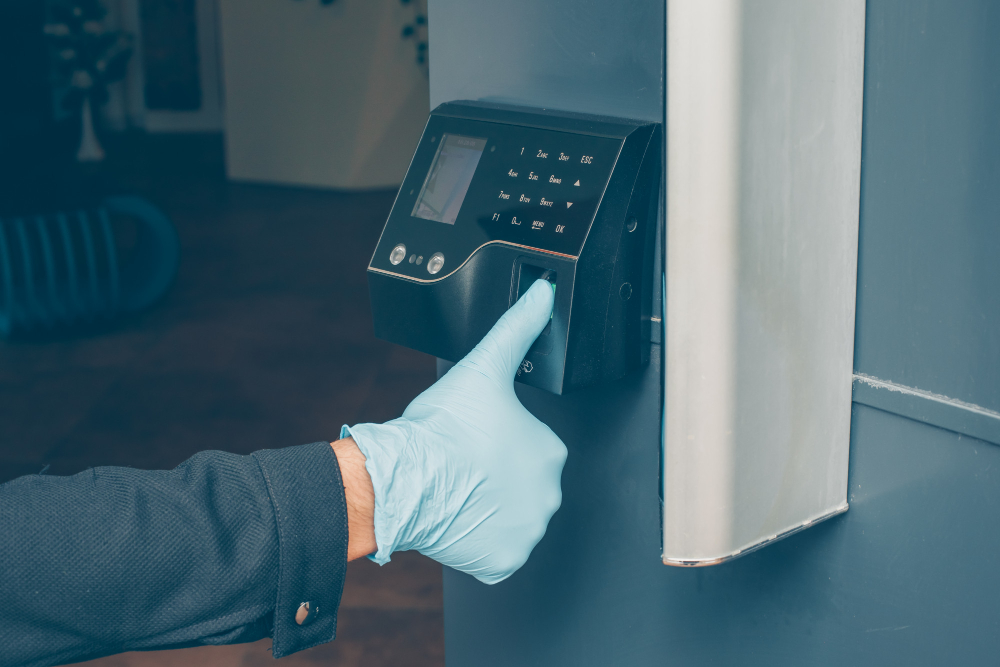
This eSSL attendance machine setup guide covers the basic steps to get a new device running. Menu names vary a little between models and firmware versions, so check your device manual if an option looks different.
Step 1: Pick the location
- Put it near the main entry, at a height most employees can reach comfortably.
- Keep it out of direct sunlight, rain and heavy dust.
- Make sure there’s a power socket and a network cable point close by.
Step 2: Power on and set the date and time
Open the main menu. This normally needs an administrator login, but a new device usually has no admin yet. Go to the system or date/time settings and set the correct date, time and format. Wrong time settings are the most common reason attendance reports come out wrong.
Step 3: Set up the network
In the communication or Ethernet settings, give the device a fixed IP address in your office network range, along with the subnet mask and gateway. Write down the IP address and the device communication port, because the software will ask for both. If you use cloud sync, enter the server details your software vendor gave you.
Step 4: Create an administrator
Enrol at least one administrator before you add employees. Two is better. Until there’s an admin, anyone standing at the device can change settings or delete logs.
Step 5: Enrol employees
- Go to User Management and choose New User.
- Enter the employee ID exactly as it appears in your HR records.
- Enrol two fingers for each person (or their face, or a card).
- Save, then test a punch for each employee.
Matching the IDs to your HR records makes it much easier to tie attendance reports to payroll later.
Step 6: Install and connect the attendance software
Install the attendance software on a PC on the same network. Add the device using its IP address and port, test the connection, then download users and logs. After that, set up departments, shifts, weekly offs and holidays.
Step 7: Run reports
Run a daily attendance report first to check that punches are coming through correctly. Then set up your monthly and payroll reports.
Fixing common eSSL attendance machine setup problems
- Can’t connect: check that the PC and device are on the same subnet, and that no other device is using the same IP.
- Fingerprint not matched: re-enrol with a different finger and ask staff to place the finger flat and centred.
- Wrong times in reports: sync the device time from the software.
If you’d rather hand it over, our technicians handle eSSL installation and software configuration from start to finish.